From adding a document to the ticket check. Every screen has one clear job.
Tickets
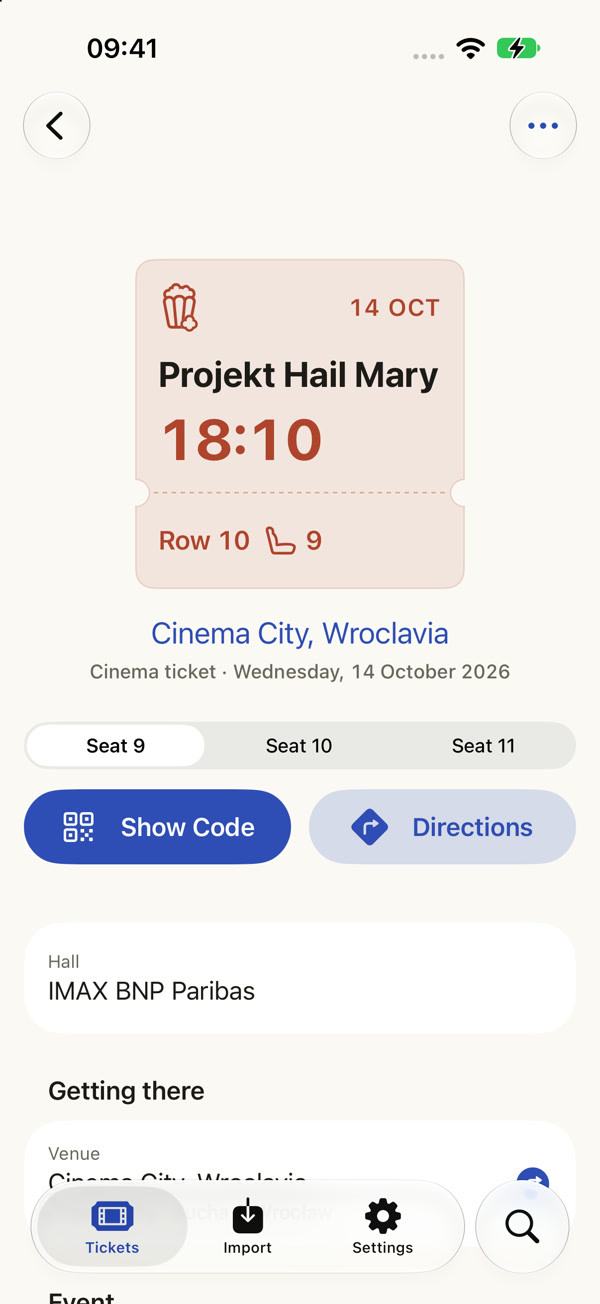
A library of clear ticket stubs. The time and seat are on the stub, and a shared purchase forms one group.
Import
Three sources: file, photo and clipboard. You add the document in whatever form you received it.
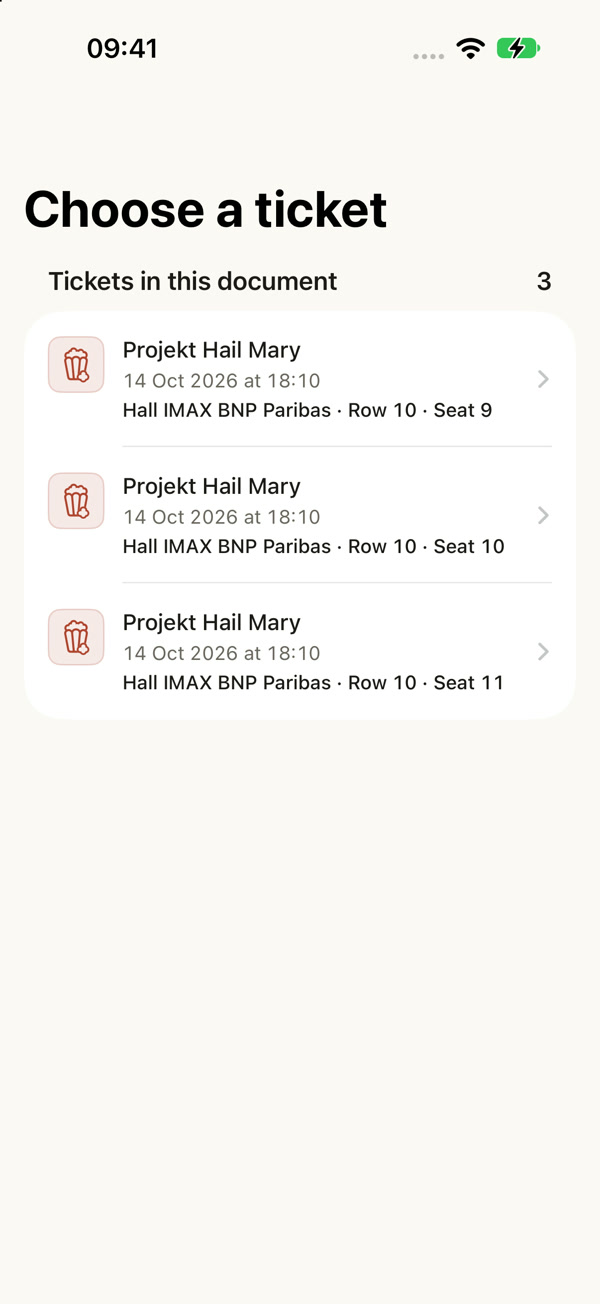
Recognised tickets
You see how many tickets the document contained. Hall, row and seat help you pick the right one.
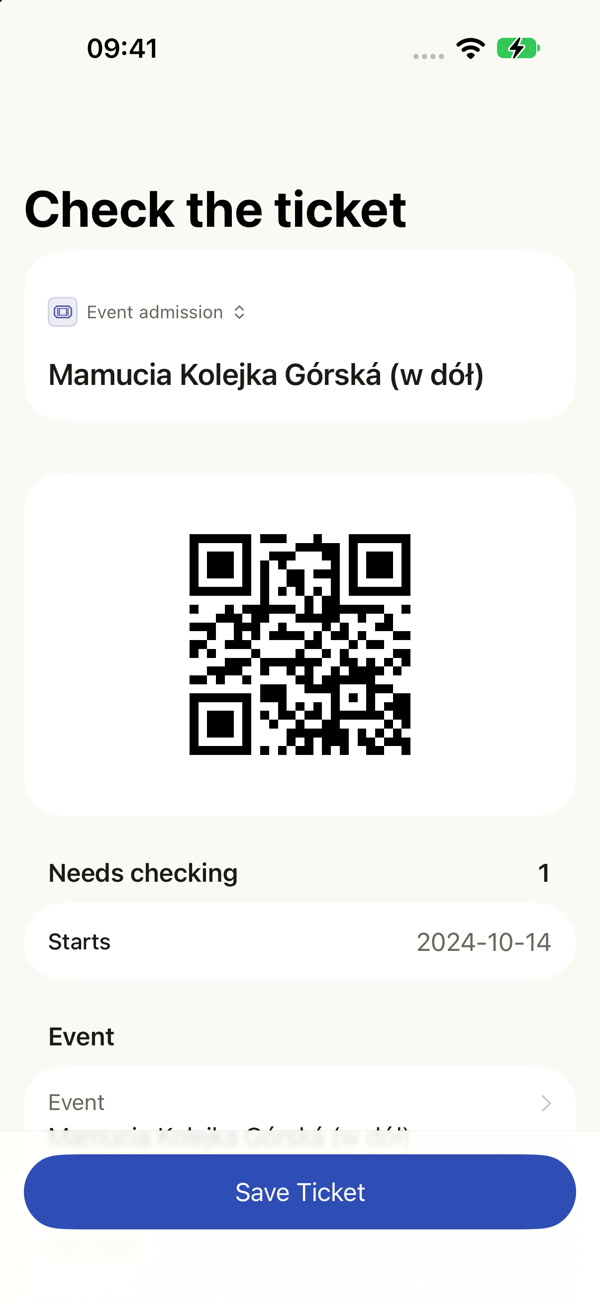
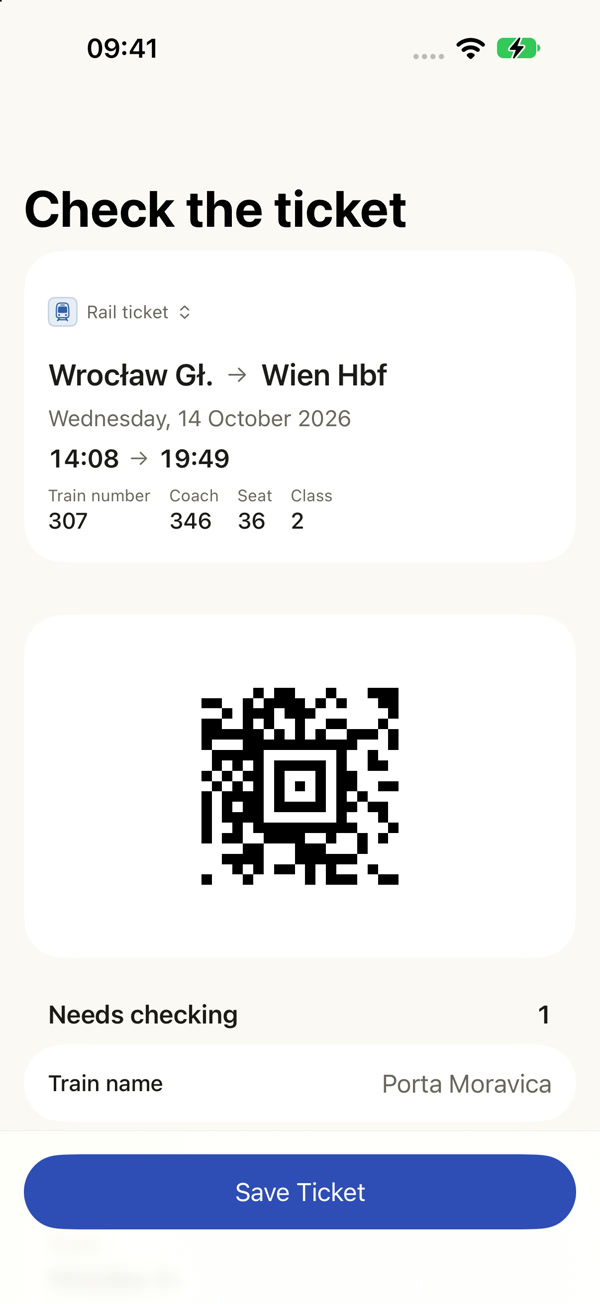
Check the ticket
The details that were read are yours to check. Tap a field to correct it before saving.
Seat switcher
Switch between tickets bought together. Every seat has its own code and its own details.
Show Code · Directions
The two key actions in the details: showing the ticket and getting there.
Search and the “…” menu
Find a ticket by its details. In the details menu you can rename it, add a note or correct a saved ticket.
Settings
Turn on reminders and choose how early they arrive. You’ll also find the app’s privacy information here.
One PDF from the cinema. Three tickets. Each at hand.
A group trip to the movies. Three PDF pages, one screening and three different seats. Pick a step to see the app screen.
A ticket in a photo. Becomes clear too.
A paper ticket for a roller coaster at an amusement park. Instead of hunting for the photo in your gallery, you add it to your ticket library.
A train ticket abroad. A journey in good order.
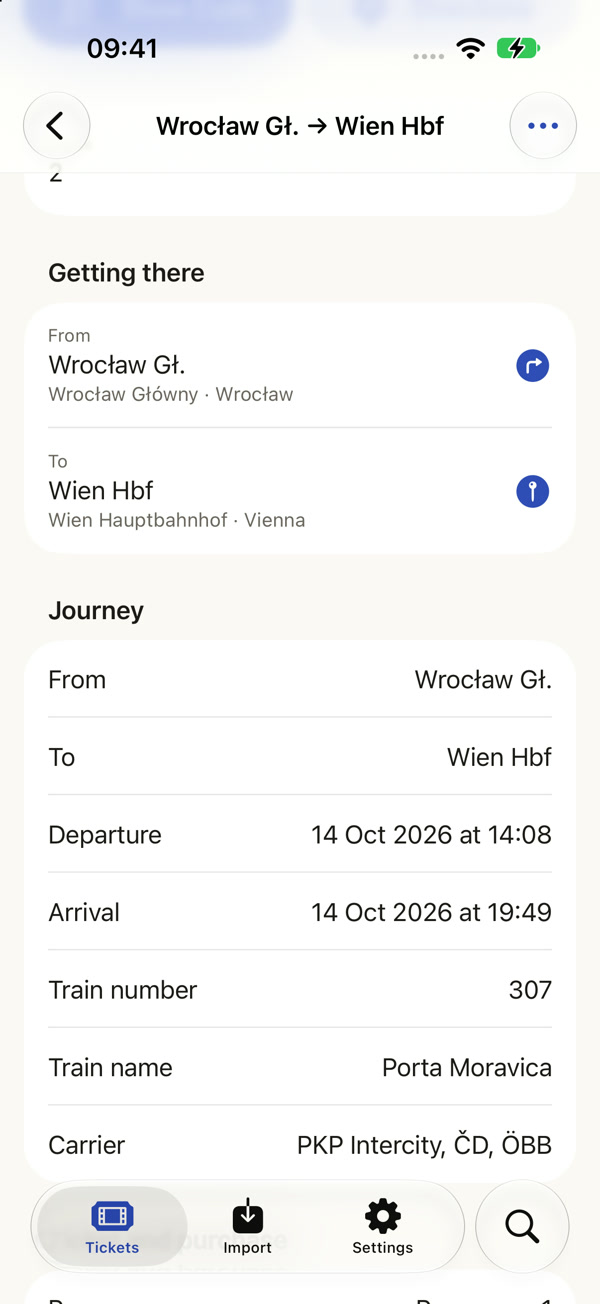
A rail ticket from a PDF: an international train, departing 14:08, coach 346, seat 36. You check the details, save the ticket and set off.
First, get to the station. Then see where you’ll arrive.
Both stations come straight from the ticket. Each one has a different role.
Departure station.
Tap “Directions” or the departure station. Entrisa opens a route to the station in your navigation app — that’s where you need to be to board the train.